> ## Documentation Index
> Fetch the complete documentation index at: https://factory-changelog-jun24.mintlify.site/llms.txt
> Use this file to discover all available pages before exploring further.
# Cloud Templates
> Spin-up instant, cloud-hosted templates that mirror your local dev setup. No install required
**Cloud Templates have been superseded by [Droid Computers](/cli/features/droid-computers).**
Cloud Templates are still supported, but we highly recommend switching for stability.
Cloud templates let you code **anywhere** without the “works on my machine” dance. Each template is a pre-configured environment that lives in the cloud, boots in seconds and can be customized to run setup commands.
## Why use cloud templates?
| Benefit | What it means for you |
| ----------------- | ------------------------------------------------------------------------------------------------------ |
| **Zero setup** | Open a session and start coding; no local installs or VM juggling. |
| **Consistency** | Every teammate (and CI job) runs the *exact* same environment. |
| **Speed** | Heavy builds run on powerful cloud CPUs; your laptop fan stays silent. |
| **Isolation** | Experiments live in disposable templates, keeping your local machine clean. |
| **Collaboration** | Share a template link; reviewers jump into the *live* environment with code and ports already running. |
***
Installation & Usage
A **cloud template** is a fully-configured, on-demand development environment that lives in the cloud. Cloud templates give you the same tools and dependencies you'd expect locally, so you can build, test, and run code directly from Factory.
To get the most out of cloud templates, configure environment variables and a setup script during template creation. The setup script installs dependencies and prepares your development environment automatically, ensuring every team member has an identical setup.
### System Requirements
* A repository enabled in Factory
* User role or higher to create cloud templates
1. In Factory, click the **Settings** icon from the left sidebar.
2. Select **Cloud Templates**.
1. Click **Create Template**.
2. Enter the repository you want to use.
3. Give your template a friendly name (e.g., “frontend-template”).
4. (Optional) Configure a setup script to run during template initialization.
5. Click **Create**.
Factory clones your repo and prepares the environment—this can take a minute for large projects.
The new template appears in the list with a status indicator. Once it shows **Ready**, you can use it from any session.
### Launching a Cloud Template inside a Session
Join any Factory session as usual.
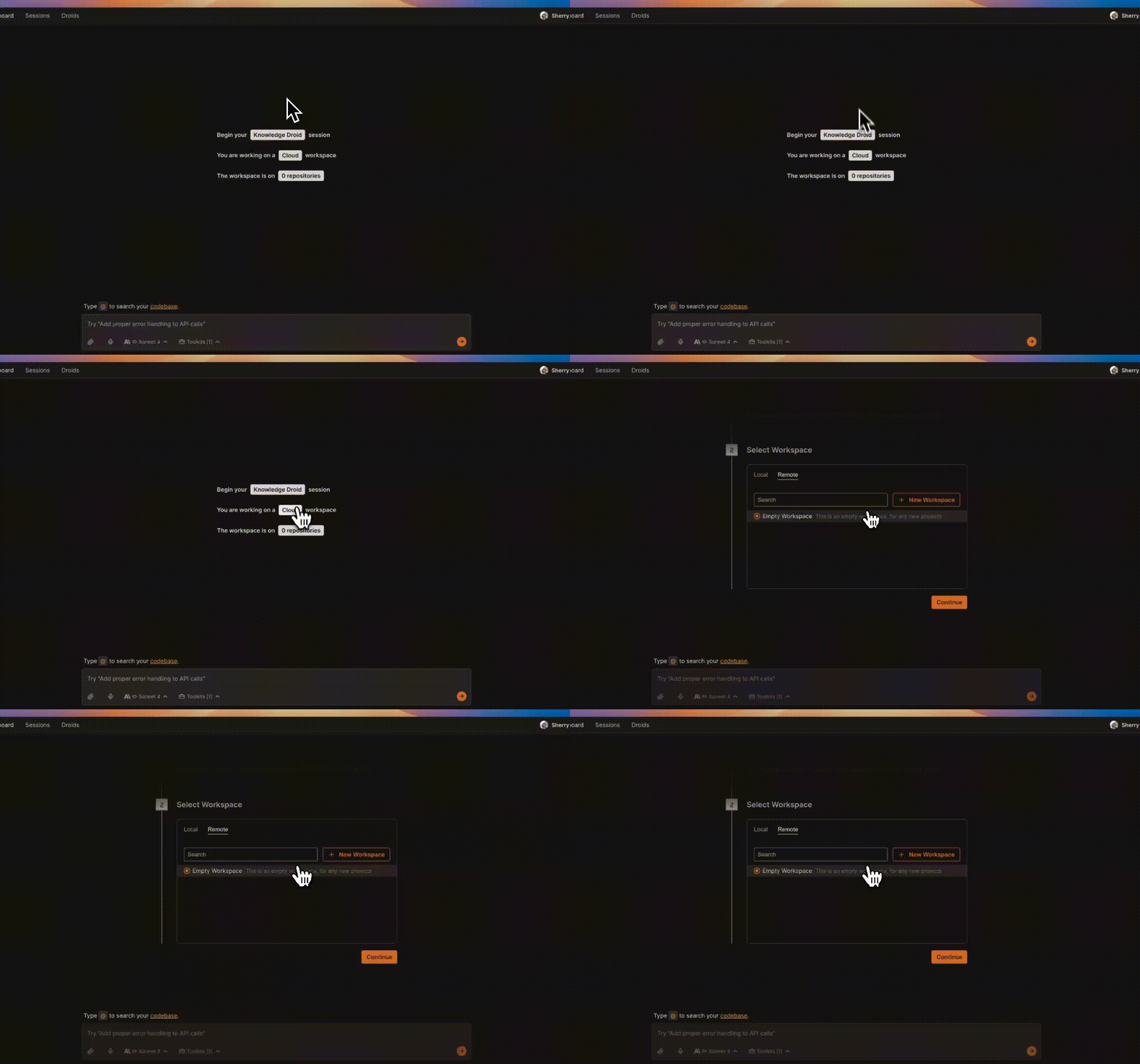
1. On the session start page, click the Machine Connection button.
2. Choose **Remote** tab.
3. Select the template you created earlier.
4. Factory attaches the cloud template to your session.
A green indicator and remote working directory appear on the top-right next to your profile dropdown menu. You’re now interacting with the cloud template.
### Everyday Usage
Use the **Terminal** toolkit to execute commands like:
npm run dev
    pytest
    git status
Output streams live into chat and logs.
Open files from the repo, make changes, and save.
Files persist in the cloud template and can be committed upstream when ready.
Auto-save is disabled by default—enable it from the **Session Settings** panel whenever you want live file syncing.
***
Setup Script
The setup script is a shell script that Factory runs during template creation, after your repository is cloned and before the template is activated. Use this feature to set up your template and give droid tools to work with your codebase.
### How to define a setup script
1. In the modal for template creation, in the "Setup Script (Optional)" section, add your initialization script. You can write a multi-line bash script with all the commands you need.
2. Submit. The script runs in the repo root exactly as provided. Add `set -euo pipefail` at the top of your script if you want strict error handling. Script failures will stop the build.
3. Keep your script non‑interactive and idempotent. Write commands that can be safely re-run.
4. Review build logs if anything fails to see detailed output from your script execution.
Examples:
**Node.js (Next.js):**
```bash theme={null}
#!/usr/bin/env bash
set -euo pipefail
npm ci
npm run build
```
**PNPM monorepo:**
```bash theme={null}
#!/usr/bin/env bash
set -euo pipefail
pnpm -w i
pnpm -w build
```
**Python:**
```bash theme={null}
#!/usr/bin/env bash
set -euo pipefail
pip install -r requirements.txt
pytest -q
```
**Multi-language project:**
```bash theme={null}
#!/usr/bin/env bash
set -euo pipefail
# Install Node.js dependencies
npm ci
# Install Python dependencies
pip install -r requirements.txt
# Run setup script
bash ./scripts/setup.sh
```
What happens under the hood:
* The script executes after repository cloning, inside the build container at the repo root.
* Environment variables specified in template settings are available during script execution.
* Errors are surfaced clearly (e.g., `Setup script failed: ...`) for quick fixes.
### Setup script troubleshooting tips
| Issue | Fix |
| ----------------------------------------- | ---------------------------------------------------------------------------------------------------------------------------------------------------------- |
| Setup fails with "Setup script failed: …" | Check the build logs for specific error messages. Run the script locally to debug, add error handling, use non‑interactive flags (e.g., `-y`), then retry. |
| Command not found | Install required tools earlier in your script or ensure they're available in the base Ubuntu image. |
| Permission denied (scripts) | Make scripts executable (`chmod +x ./scripts/setup.sh`) or invoke via interpreter (`bash ./scripts/setup.sh`). |
| Env var not found | Add it in Environment Variables section and reference as `$VAR`. Avoid echoing secrets in your script. |
| Long builds | Keep your script minimal; prefer cached installs (`npm ci` over `npm install`); avoid heavy, non‑essential work. |
| Path/file not found | Scripts run at the repo root. Verify relative paths and that files exist after clone. |
***
Best Practices
Cloud templates let you spin up consistent, production-ready development environments in seconds. Below are field-tested practices that keep templates fast, predictable, and team-friendly.
### Smart setup script practices
| Practice | Why it matters | How to do it |
| --------------------------------- | --------------------------------------------------- | ----------------------------------------------------------------------------------------------------------- |
| **Order commands by dependency** | Later commands may depend on earlier installs. | Run package installation first: `npm ci && npm run build` or `pip install -r requirements.txt && pytest -q` |
| **Use exact package managers** | Consistent lockfiles prevent version drift. | Use `npm ci` (not `npm install`), `pnpm -w i`, or `pip install -r requirements.txt` for reproducible builds |
| **Add error handling** | Stops build on first failure, saves debugging time. | Start your script with `#!/usr/bin/env bash` and `set -euo pipefail` for proper error handling |
| **Make scripts executable early** | Avoid permission errors mid-build. | Add `chmod +x ./scripts/setup.sh && bash ./scripts/setup.sh` or use `bash ./scripts/setup.sh` directly |
| **Keep scripts idempotent** | Re-running setup shouldn't break things. | Use flags like `pip install --no-deps` or check for existing files before creating them |
| **Minimize heavy operations** | Long builds slow down template creation. | Focus on essential setup; defer optional tools to manual installation later |
> **Tip:** Test your setup script locally first. The script runs with `bash` at the repo root, and you can add `set -euo pipefail` for strict error handling.
### Workflow patterns that scale
Treat remote sessions as disposable: create one per ticket or PR, then archive when merged.
**Benefits:** perfect isolation, zero “works on my machine” drift.
Need to test multiple branches? Launch two separate sessions; switch context without killing processes.
### Team collaboration tips
| Tip | Details |
| --------------------------- | --------------------------------------------------------------------------------------------------------------- |
| **Name templates clearly** | Name templates according to the tracked repository, e.g. `repo-name` to work on a repository named `repo-name`. |
| **Document entry commands** | Add an `AGENTS.md` file with common tasks (`npm run dev`, `pytest`). Droid automatically reads this file. |
***
Troubleshooting
Even the smoothest cloud template can hit a snag. This section walks you through the quickest fixes for the most common cloud template issues.
### Quick reference
| Category | Typical Symptoms |
| ---------------------- | ----------------------------------------------------------------------------- |
| **Workspace Creation** | “Provisioning” forever, cloning errors, setup script fails |
| **Connection** | Can’t attach from session, pairing spinner never stops, “Machine unavailable” |
| **Performance** | Slow rebuilds, high latency in terminal, laggy editor |
| **Devcontainer** | Build errors, “command not found”, ports not reachable |
| **General Usage** | Git asks for credentials, disk full, permission denied |
### Workspace creation issues
**Diagnose**
* Error toast shows *“clone failed”* with a Git exit code
* Private repo? Missing OAuth scopes?
**Resolve**
1. Verify the repo is enabled and displays **Connected** in Integrations
2. Refresh your OAuth token if prompted
### Connection problems
In your session, click the **CPU** icon → ensure **Cloud Machine** is selected.
If it shows **Local Machine**, switch to **Cloud Machine** and pick the template.
* Use **Chrome** or **Edge** (other browsers may block WebSocket upgrades).
* Disable VPN/proxy to rule out WebSocket filtering.
* Reload the session tab (⌘R / Ctrl-R).
### Performance & speed
| Symptom | Fix |
| ------------------------- | ------------------------------------------------------------------------------------------------------------------------------ |
| **Rebuild takes > 5 min** | Add `.dockerignore` for `node_modules`, `*.pyc`, build outputs• Use a lighter base image (e.g., alpine) |
| **Terminal latency** | Close unused browser tabs with heavy JS• Check local bandwidth (>5 Mbps recommended)• Pause real-time spell-checker extensions |
| **Editor lag** | Disable file watchers in dev tools (`nodemon`, `webpack --watch`) unless needed• Use auto-save only when collaborating |
### General usage troubles
| Issue | Resolution |
| ---------------------------------- | ----------------------------------------------------------------------------------------------------------------------- |
| **Git prompts for credentials** | Make sure the repo integration is connected; cloud template injects HTTPS tokens automatically. |
| **Disk quota exceeded** | Clear package caches (`npm cache clean --force`, `pip cache purge`), remove large build artifacts, or rebuild template. |
| **Permission denied on file save** | File is outside the repo template; save inside `/workspaces//`. |
| **Cannot install global packages** | Use `npm install -g` or `pip install --user`. If still blocked, add commands to `postCreateCommand`. |
| **History lost after rebuild** | Anything outside `/workspaces` is cleared during rebuild. Commit important scripts or store them inside the repo. |
> A quick rebuild fixes 80 % of issues—don’t hesitate to click **Rebuild** when in doubt.